Google Search Console is a free Google tool that shows how your website performs in Google Search, and helps you fix indexing and technical issues. Start by verifying your site, then submit your sitemap so Google can discover important pages faster. Use the Performance report to find queries and pages with high impressions but low clicks, and improve titles, meta descriptions, and content. When a page isn’t indexed, use the Page indexing report and URL Inspection tool to see why and request reindexing after you fix the issue.
Table of Contents
Why use Google Search Console?
Google Search Console helps you understand how your website is performing on Google. It shows you important information such as technical issues, crawl errors, and pages that are not indexed. You can also see which keywords are losing impressions or rankings, so you know where to improve and focus your SEO efforts.
It also sends email alerts when Google detects new problems on your website. This allows you to fix issues quickly before they affect your traffic. Because of this, Google Search Console is an essential tool for anyone who owns or manages a website.
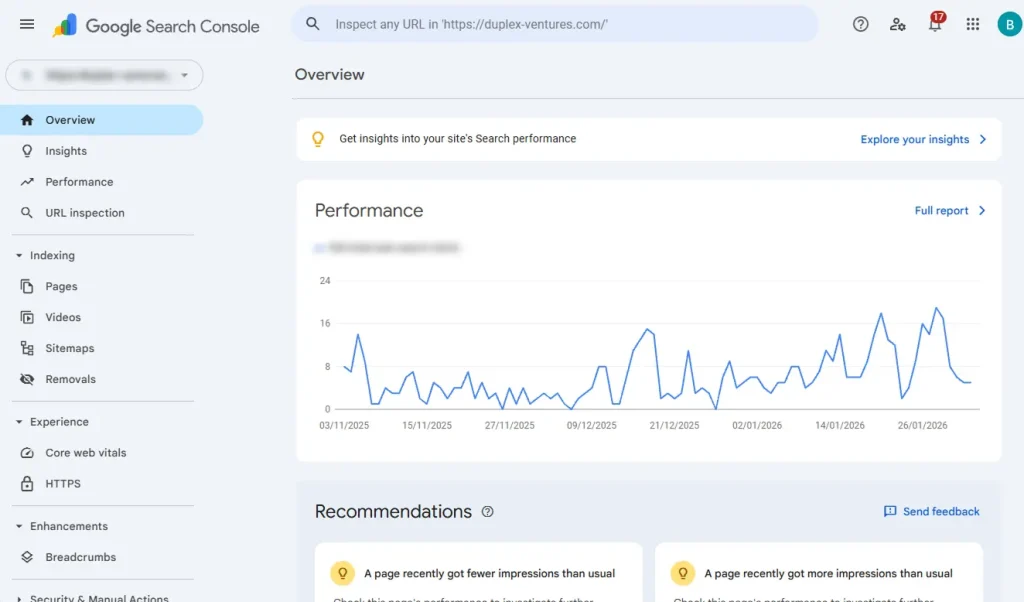
Overview of Google Search Console Sections
Google Search Console is organized into different sections, and Google keeps adding more over time. Each section helps you understand a specific part of how your website performs and how Google sees it.
- Performance
- See how your site performs in Google Search, Discover, and Google News, including clicks, impressions, and keywords.
- URL Inspection
- Check a specific page to see how Google crawls, indexes, and understands it, and whether it can show rich results.
- Indexing
- Understand how Google finds and indexes your pages, videos, XML sitemaps, and any pages you asked Google to remove.
- Experience
- Review your site’s user experience on mobile and desktop, including Core Web Vitals and HTTPS status.
- Shopping
- If you sell products online, this section shows how your products appear in Google Shopping and rich results.
- Enhancements
- View structured data on your site, such as reviews, events, and job postings, and see if they are eligible for rich results.
- Security & Manual Actions
- Check for security issues or manual penalties from Google (you usually only visit this if there’s a problem).
- Links
- See your internal links and external backlinks pointing to your website.
Setting Up An Account
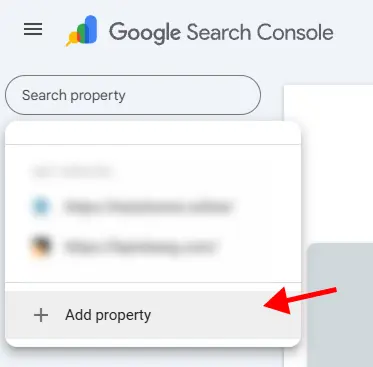
To start using Google Search Console, you first need to create an account. Once you log in, click “Add property” at the top of the dashboard to add your website.
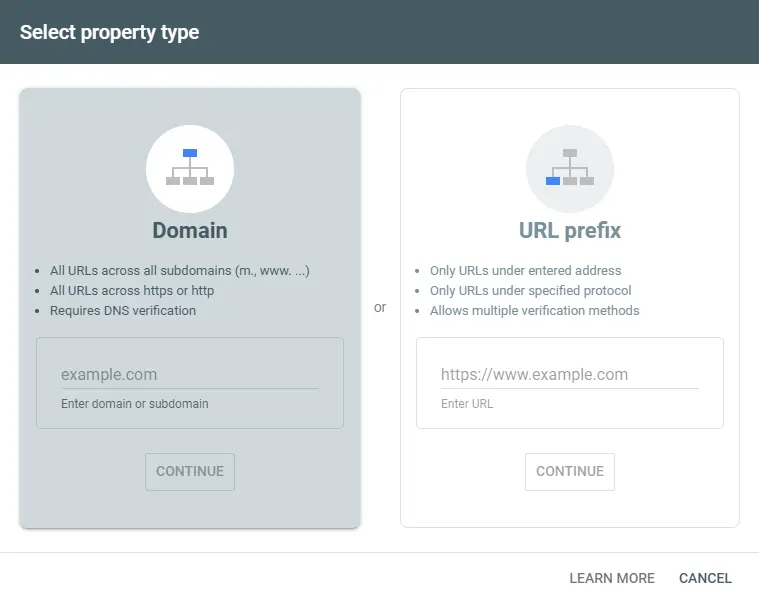
You’ll then choose how to add your site. If you select the Domain option, you only need to enter your domain name (without www or subdomains). This option tracks everything under that domain. If you choose the URL prefix option, you must enter the full website address, including https:// and whether your site uses www or not. Choosing the correct version is important so Google can collect accurate data for your website.
After adding your website, you must verify that you’re the owner before you can use the data in Google Search Console. Google needs confirmation that the website belongs to you. There are a few verification methods available.
If you choose the Domain property, verification can only be done through DNS settings. For the URL prefix property, you’ll have more options, such as HTML file upload, meta tag, Google Analytics, or Google Tag Manager. If you’re using WordPress, you can also connect Search Console using the Google Site Kit plugin, which links your Search Console and Analytics accounts and shows the data directly in your WordPress dashboard.
Features in Google Search Console
Now that you’ve set up your account, what’s next? It’s time to start exploring your data. Google Search Console provides many useful reports that help you understand how your website is performing on Google.
In the rest of this guide, we’ll walk you through the key features, reports, and insights available in Search Console, so you can learn how to monitor performance, fix issues, and improve your website’s visibility step by step.
Performance Tab
In the Performance tab, you can see which pages and keywords your website is ranking for on Google. If your site is eligible, you’ll also see how your content performs on Google Discover and Google News. Google Search Console provides up to 16 months of performance data, so you can track your progress over time.
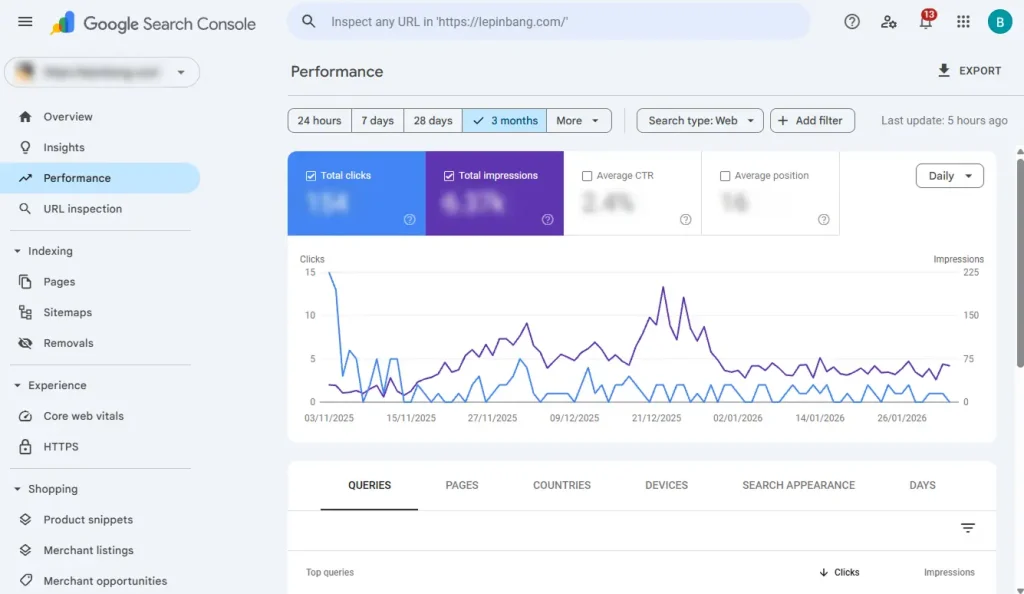
If you check this tab regularly, you can quickly identify which keywords or pages need more improvement. Inside the report, the data is organized into queries, pages, countries, and devices. There is also a search appearance section that shows how your rich results perform in search. You can sort the data by clicks, impressions, average CTR, and average position, which we will explain in the next section.
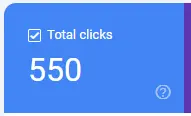
1. Clicks
Clicks show how many times people clicked on your website from Google’s search results. This number helps you understand how attractive your page title and meta description are. If your impressions are high but clicks are low, it may mean your result is not standing out, so you might need to improve your title or description.
Your ranking position also affects clicks. Pages that appear in the top three results on Google’s first page usually get much more clicks. If your page ranks lower or appears on the second page, the number of clicks will naturally be lower even if people are searching for that keyword.
2. Impressions
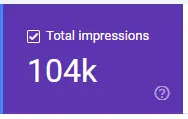
Impressions show how often your website or a specific page appears in Google search results. For example, if a keyword has high impressions, it means your website is being shown frequently when people search for that term. However, impressions alone do not tell you which page is ranking for that keyword.
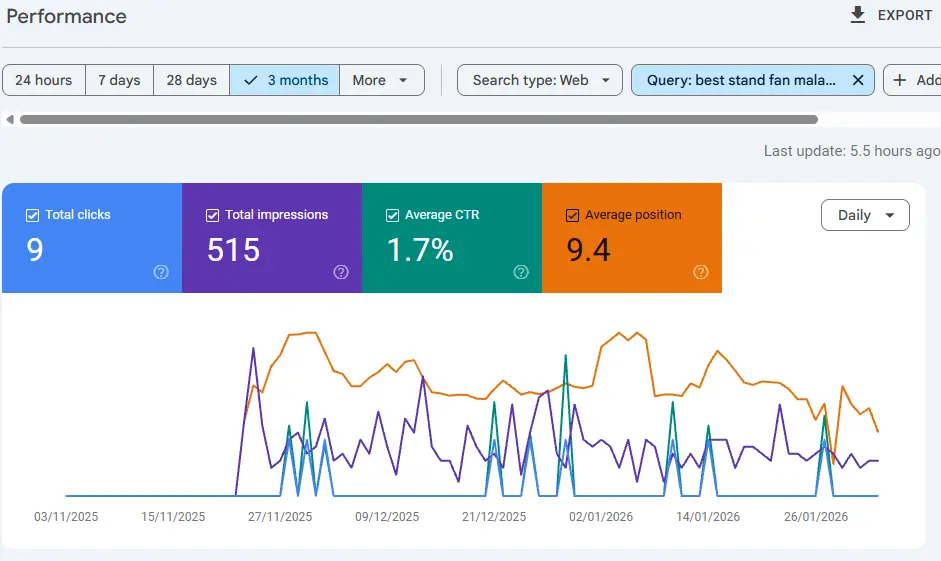
To find out, you can click on the keyword in the report. This will apply the keyword as a filter. Then, go to the Pages tab to see which pages are ranking for it. If the ranking page is not the one you want, you may need to optimize the correct page by improving the content, adding the keyword naturally, building internal links, or improving page speed and overall SEO.
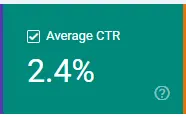
3. Average CTR
Average CTR, or click through rate, shows the percentage of people who clicked your website after seeing it in Google search results. For example, if many people see your page but only a few click, your CTR will be low. Usually, pages that rank higher on Google will get a higher CTR.
You can also improve your CTR by making your page title and meta description more attractive. Writing clearer, more engaging text can help your result stand out from others. When your snippet looks more appealing, more users are likely to click on it. However, if your page is not ranking on the first page yet, improving rankings should be your first priority before focusing too much on CTR.
4. Average Position
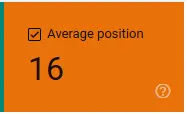
Average position shows the average ranking of your keyword or page in Google search results during the selected time period. It gives you a general idea of where your website appears when people search for that term.
However, this number is not always 100 percent accurate because Google search results can vary between users. Factors like location, device, and search history can affect rankings. Even so, average position is still useful to help you understand whether your clicks, impressions, and CTR performance make sense and where you may need to improve your SEO.
Indexing
The Indexing section is a more technical but very important part of Google Search Console. It shows how many of your pages are indexed by Google and how many are not. You can also view any errors or warnings that may prevent Google from indexing your pages properly.
This section is divided into several parts. It separates your regular web pages and video pages so you can monitor how each type is indexed. You will also find areas to submit and manage your XML sitemap, as well as check any page removal requests. This helps ensure Google can discover, crawl, and index your content correctly.
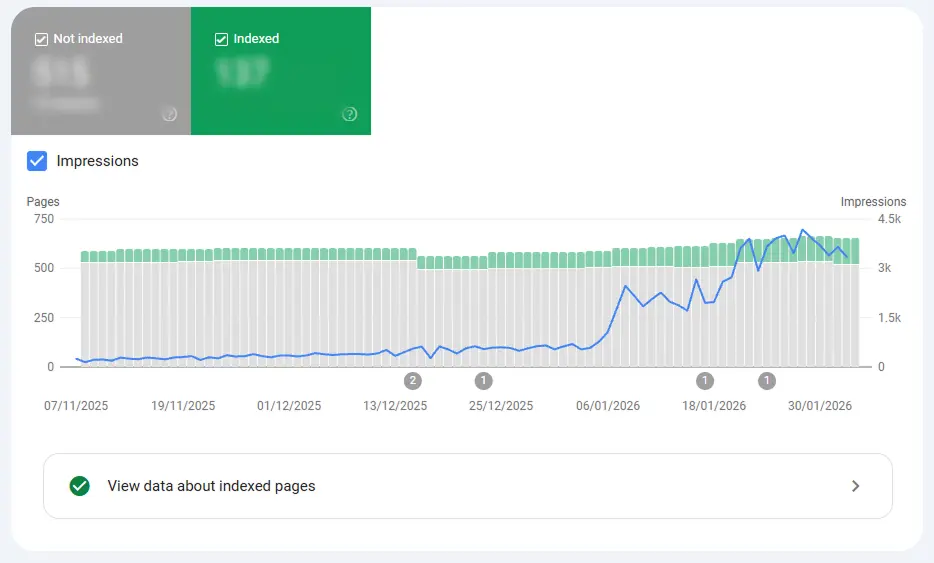
We recommend checking this tab regularly to monitor website issues. Google will also send notifications when new errors are detected so you can take action quickly. When you receive these alerts, review them carefully to understand the root cause.
Some errors may occur due to incorrect redirects, broken code, or error pages within your theme. You may also see messages like “Crawled currently not indexed,” which means Google has visited the page but has not added it to the index. Google usually provides possible reasons and suggested fixes.
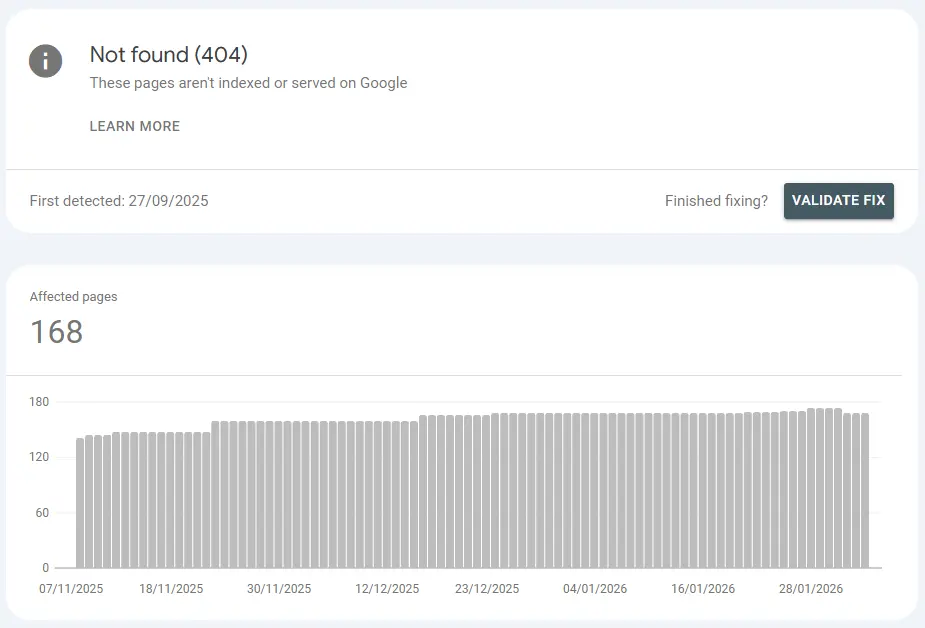
When you click on a specific issue, you can view the affected URLs and analyze the problem in more detail. After fixing it, you can mark the issue as resolved so Google will recheck the page and update its indexing status.
Things to Look Out For
When checking your indexing coverage reports, there are a few important things you should monitor regularly.
If you are publishing new content, the number of indexed pages should gradually increase. This shows that Google can index your website properly and that your site stays active with fresh content. However, if you notice a sudden drop in indexed pages, it could mean Google is having trouble accessing your site. This might be caused by robots.txt changes, server downtime, or other technical blocks that need immediate attention.
You should also watch for sudden spikes in indexed pages. This may indicate duplicate content issues, such as having both www and non www versions, incorrect canonical tags, automatically generated pages, or even possible security problems. It is important to monitor these changes closely and fix errors quickly, as too many indexing issues may signal poor site quality to Google.
URL Inspection
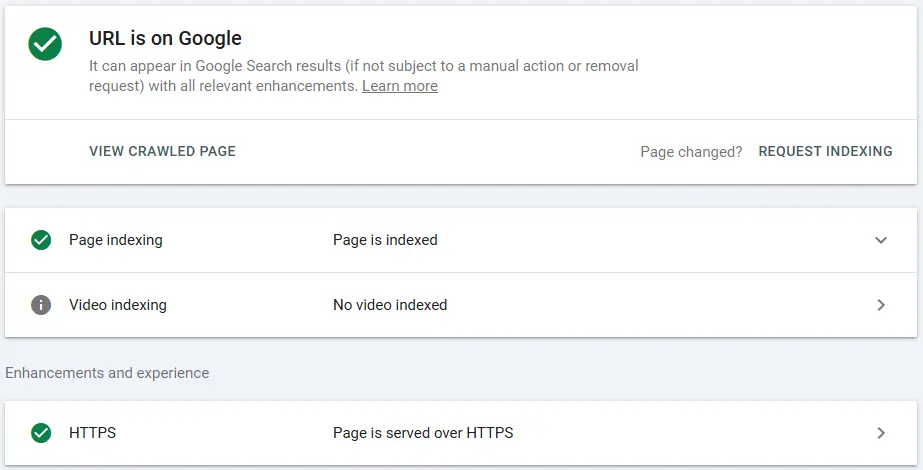
The URL Inspection tool helps you analyze a specific page on your website. It allows you to retrieve the page from Google’s index and compare it with the live version on your site to check if there are any differences.
You can also view technical details such as when Google last crawled the page and how it appeared at that time. Sometimes, you may see errors if Google has trouble crawling the page properly. In addition, the tool shows information about any structured data detected on that URL, helping you understand its eligibility for rich results.
Experience
The Experience report is a very useful section in Google Search Console. It helps you understand how your website performs in terms of speed and user experience on both mobile and desktop. Google uses Core Web Vitals to measure page experience, and this report shows which pages are performing well and which ones have issues that need improvement. The data comes from the Chrome UX report, which means it is based on real user experience.
Site speed and page experience can be quite technical, with many factors affecting performance. That is why it is important to understand how page speed works and how to improve it. By reviewing this report regularly, you can identify problem pages and take steps to optimize loading speed and overall user experience.
Enhancements Rich Results
If your website uses structured data, for example through plugins like Rank Math SEO, it is a good idea to check the Enhancements reports in Google Search Console. This section collects insights and improvements that may help your pages qualify for rich results in Google search. It shows all the structured data that Google has detected on your site.
There is a growing list of rich result types you may find here, including breadcrumbs, events, FAQs, job postings, profile pages, review snippets, sitelinks search boxes, and videos. Google continues to expand rich result features, so new reports may appear over time.
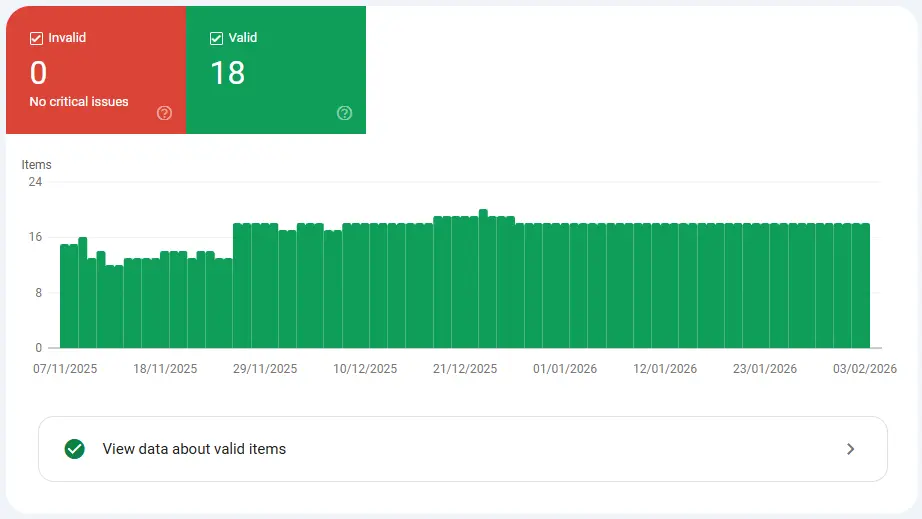
Each enhancement report shows how many items are valid and how many contain errors or warnings. You can view detailed information about the issues and see which URLs are affected. There is also a trend graph that helps you monitor whether the number of issues is increasing or decreasing.
For example, if your site uses job posting schema, you will see a dedicated enhancement report for job postings. You can also overlay impressions data to understand how these rich results perform in search.
The Enhancements reports help you identify and fix issues that may affect your rich results performance. By reviewing errors, reading Google’s support documentation, and validating fixes, you can improve your chances of getting rich results and increasing your search visibility.
Sitemaps
An XML sitemap acts like a roadmap for your website. It lists all your important pages and posts so Google can find and crawl them more easily. Every website should have an XML sitemap to help improve indexing.
If you are using Rank Math SEO, an XML sitemap is automatically generated for you. If not, we recommend creating one to make sure Google can easily discover your key content. You can submit your sitemap in the Indexing tab inside Google Search Console by adding the sitemap URL.
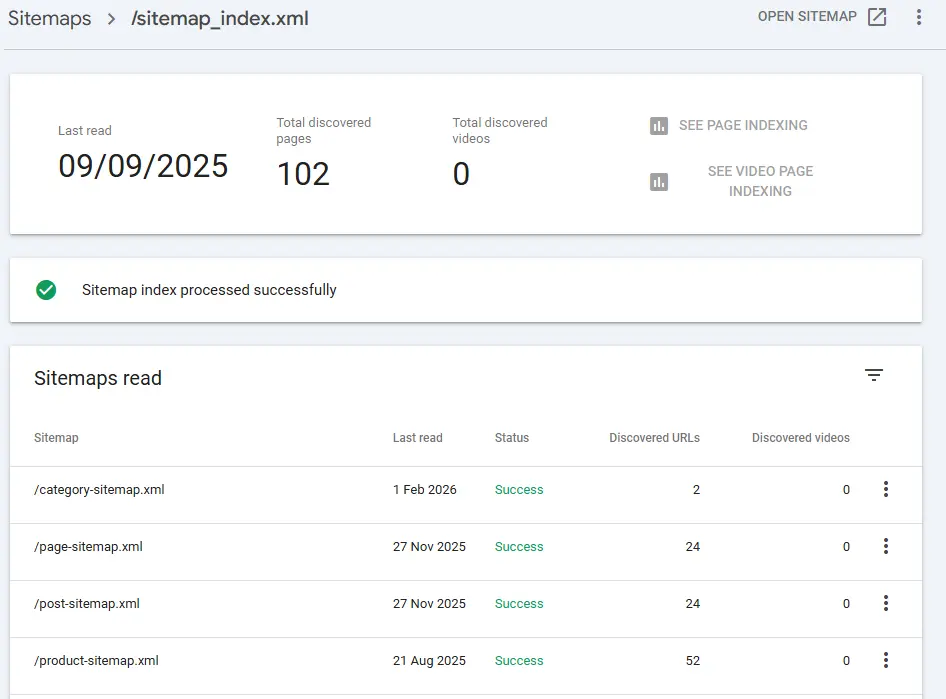
After submitting, remember to check your sitemap regularly. This helps you see if there are any errors or if certain pages are not indexed. Monitoring this section ensures Google can read your sitemap properly. You should also review your sitemap settings in Rank Math to control which post types or taxonomies are included, so only important pages are submitted to Google.
Shopping
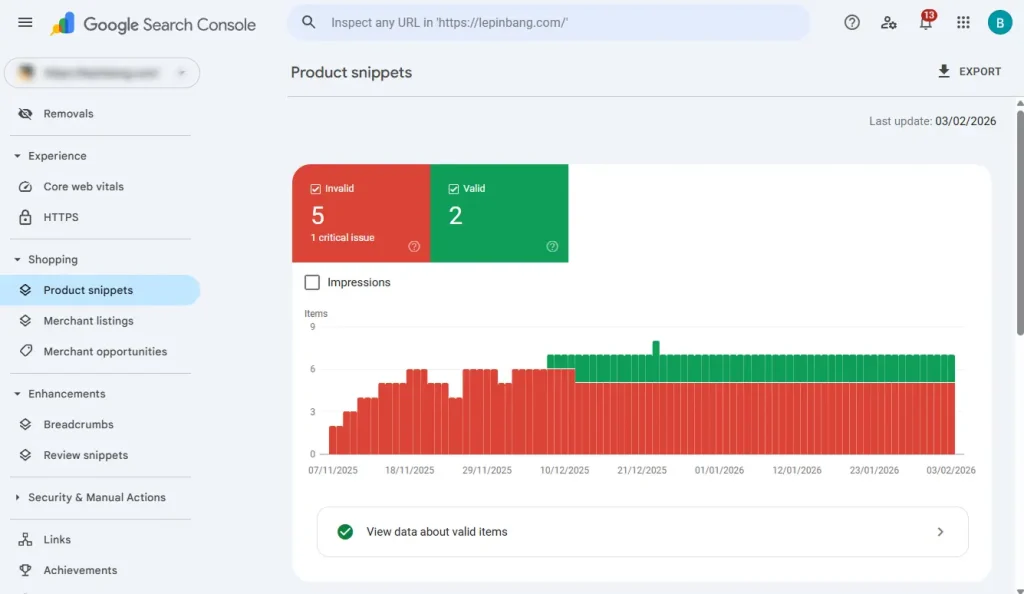
If you sell products online, check the Shopping section in Google Search Console. It shows how Google sees your product pages and whether they qualify for richer product results. You can see if listings are valid or if some fields are missing. Missing fields can make your product snippets less prominent. Click into a product issue to see which fields are missing and whether they are essential or optional. After fixing your product data on the site, you can validate the fix inside Search Console.
You will also find tools related to your merchant listings and how your shop appears in Google Shopping. This gives ecommerce owners more ways to track performance and improve visibility. For eligible online shops, Search Console shows recommendations to improve how the shop appears on Google, such as adding store information, shipping and returns, ratings, or payment methods.
Regularly reviewing this section helps you keep product structured data healthy, fill in missing information, and make sure your products have the best chance to show well in search and shopping experiences.
Links
In the Links section, you can see how many external websites are linking to your site. It also shows which websites are linking to you, how many links they provide, and the anchor text most commonly used. This information is valuable because backlinks are still an important factor in SEO and can influence your search rankings.
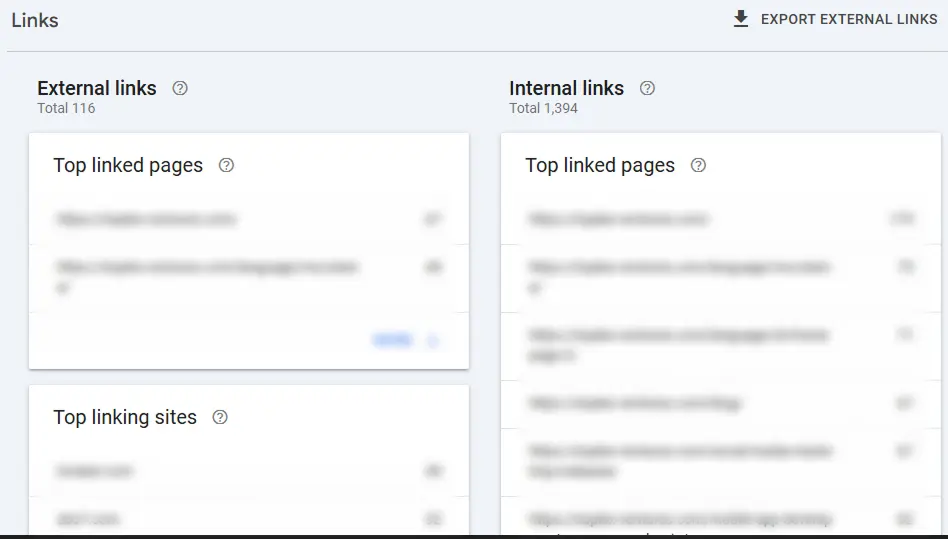
There is also an Internal Links report. This shows which pages on your website receive the most links from other pages within your site. Reviewing this regularly helps you ensure your most important pages get enough internal links. This makes it easier for Google to understand your key content and strengthens the SEO value of your cornerstone pages.

Manual Actions
You definitely do not want to see issues in the Manual Actions tab. If Google penalizes your website, the details will appear here, and you will also receive an email notification. A manual action means your site has violated Google Search guidelines and may experience ranking drops or removal from search results.
Several situations can lead to manual actions:
- Unnatural or bought links
- Links should come naturally from relevant and valuable content. Avoid buying links or building links purely for SEO purposes, as this can trigger penalties.
- Website hacked
- If your site is compromised by hackers, Google may flag it as unsafe. This can lower your rankings or show warnings to users in search results.
- Hidden content or cloaking
- Showing different content to Google and users, or using sneaky redirects, violates Google guidelines and may result in penalties.
- Pure spam
- Automatically generated content, scraped content, or aggressive spam tactics can cause your site to be blocked or removed from search.
- Spammy structured data
- Using rich snippets on irrelevant content or marking up hidden elements may be considered spam. Only apply structured data where it is accurate and necessary.
Regularly checking the Manual Actions tab helps you catch issues early and take corrective action to restore your site’s search visibility.
Conclusion
Google Search Console is a must-have tool if you want your website to perform well on Google. It helps you understand what is happening behind the scenes, from keyword rankings and clicks to indexing issues and technical errors. With all the reports available, you can clearly see what is working and what needs improvement.
The more regularly you check and use the data, the easier it becomes to grow your website traffic and visibility. Whether you are running a business website, ecommerce store, or personal blog, learning how to use Google Search Console will help you make better SEO decisions and keep your site healthy in the long run.
Frequently Asked Questions
Is Google Search Console free to use?
Yes, Google Search Console is completely free. Anyone with a website can create an account and start tracking performance, indexing, and search visibility.
How often should I check Google Search Console?
It is recommended to check at least once a week. Regular monitoring helps you spot errors, ranking changes, or indexing issues early.
Do I need technical knowledge to use Search Console
No. Beginners can easily understand basic reports like Performance and Indexing. More technical sections are available but not required for daily use.
How long does it take for data to appear in Search Console
After setting up and verifying your site, data usually starts appearing within a few days, but full reports may take longer to populate.
Can Google Search Console improve my rankings
Search Console itself does not improve rankings. However, the insights and data help you optimize SEO, fix issues, and make improvements that can lead to better rankings.
Visit our page if you need more details.
Also Read:
- How to Use Meta Business Suite: 2026 Step-by-Step Guide
- What is SEO and How Does it Work?
- What Is GEO? Generative Engine Optimization Explained (2026)
- WordPress SEO Plugins: The Best Tools to Improve Rankings in 2026
- SEO vs GEO vs AEO: Key Differences Explained (2026)
- What Is Black Hat SEO? 17 Risky Tactics to Avoid (2026)