How to set up WordPress? Start by choosing a domain and hosting, then install WordPress using your host’s 1-click installer (fastest) or install manually (download WordPress, upload files, create a database, run the installer). Next, set your site title, install a lightweight theme, add essential plugins (SEO, security, backup, cache), and create key pages like Home, About, Services, Blog, and Contact. Finally, connect Google Search Console, set permalinks, and add a clear WhatsApp/form CTA so your site can start converting visitors immediately.
Table of Contents
WordPress is the most popular content management system in the world. It powers more than 43% of all websites on the internet.
One of the main reasons for its popularity is its flexibility and ease of use. WordPress comes with many useful features, thousands of plugins, and a simple installation process. Because of this, anyone can create a website, even beginners with no technical experience.
If you are new to WordPress, the installation process may look confusing at first. But the good news is that it is usually very simple and can be completed in about five minutes.
By the end of this guide, you will be ready to start building your WordPress website.
How To Set Up WordPress
In the next steps, you will learn how to build a complete WordPress website from the beginning. We will guide you step by step so you can set up your site easily, even if you are a beginner.
Before we start, this tutorial focuses on creating a self hosted WordPress website using the free software from WordPress.org. This is different from WordPress.com, which is a paid website builder with fewer customization options and less control over your website.
We build stunning WordPress sites and keep them updated
Focus on growing your business while we handle everything from professional website design to regular updates, backups, and security.
1. Choose a Web Hosting Service
Before building your website, you need web hosting. Web hosting is where your website files are stored so people can visit your site online.
There are many hosting providers, but beginners often choose Bluehost. It is also recommended by WordPress.org because it is affordable and easy to use.
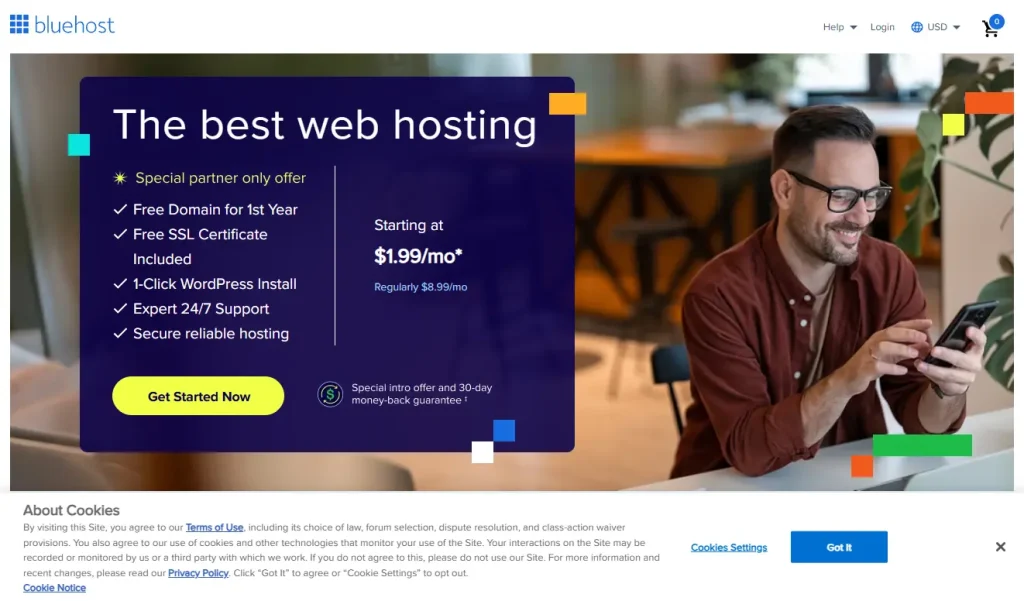
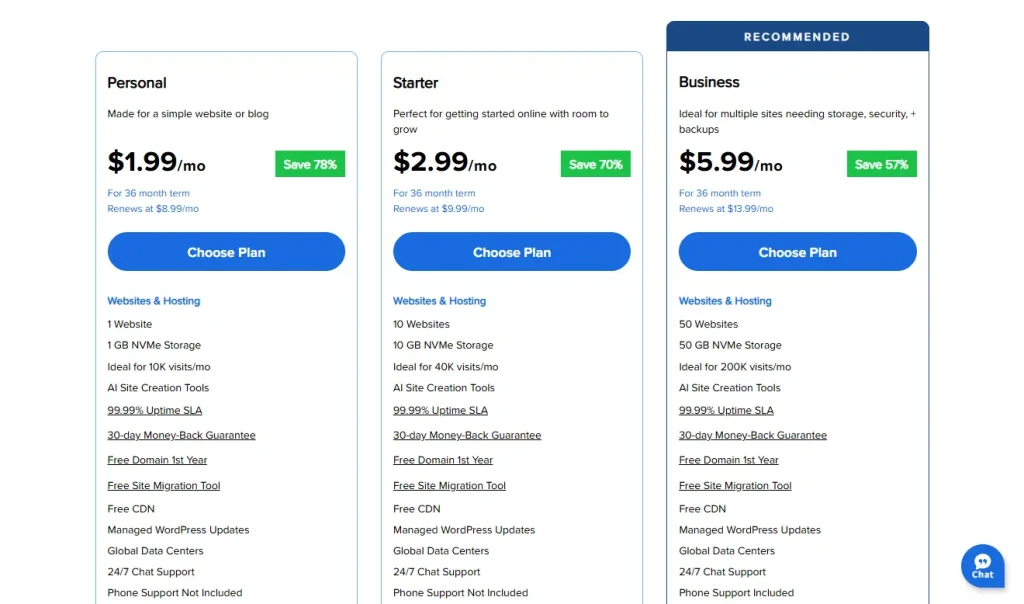
Go to the Bluehost WordPress hosting page and look at the plans available.
Pick a plan that matches your needs. Most plans come with a free domain name and free SSL certificate.
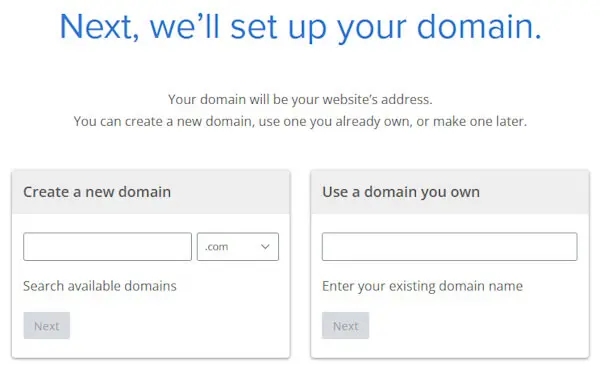
After choosing a plan, you will create your domain name. This is your website address, for example yourwebsite.com.
Try to choose a .com domain that is short, simple, and related to your brand name.
Next, enter your account details and make the payment.
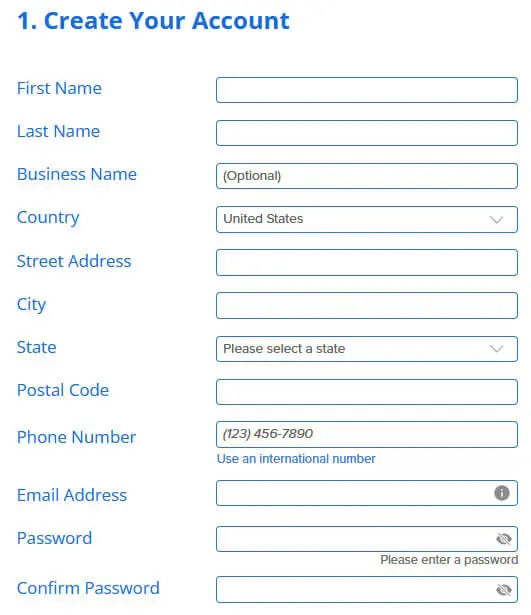
Once payment is completed, set your account password.
Your hosting account is now ready.
Now you can move on to installing WordPress.
2. Install WordPress
One of the best things about Bluehost is that WordPress is installed automatically when you first log in to your hosting account.
After creating your password, Bluehost will bring you to the login page. Enter your account details to access your dashboard.
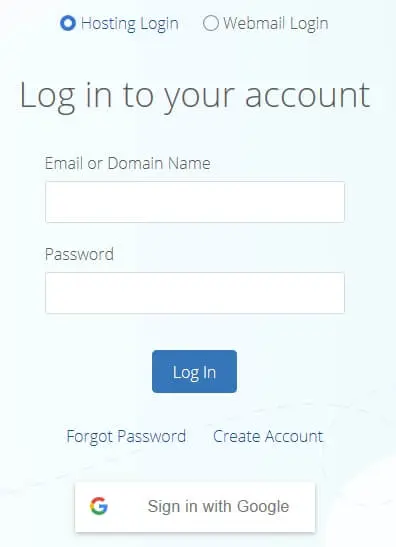
Once you are logged in, you will see a button that says Create your Website at the bottom of the screen. Click this button to begin.
You may see several setup steps. You can skip these by clicking Skip this step until you reach the Bluehost dashboard. This allows you to practice setting up your website directly inside WordPress later.
When you arrive at the dashboard, click Log into WordPress.
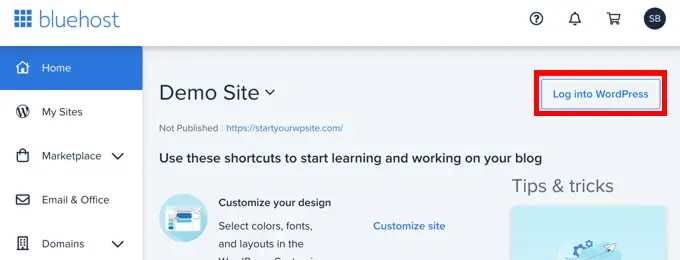
You will now be taken to your WordPress admin area while the installation finishes in the background.
Your WordPress website is now ready.
It is time to start customizing your site.
3. Select a Theme for Your Site
Choosing a theme is an important step because it controls how your website looks.
Your site design, layout, colors, and fonts all depend on the theme you use.
If you open your website now, you will see the default WordPress theme already active.
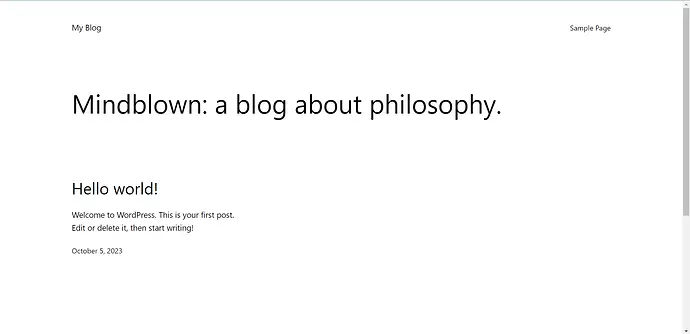
You can use it, but most people prefer to install a new theme to match their brand and style.
After logging in to WordPress, go to the left menu and click Appearance, then click Themes.
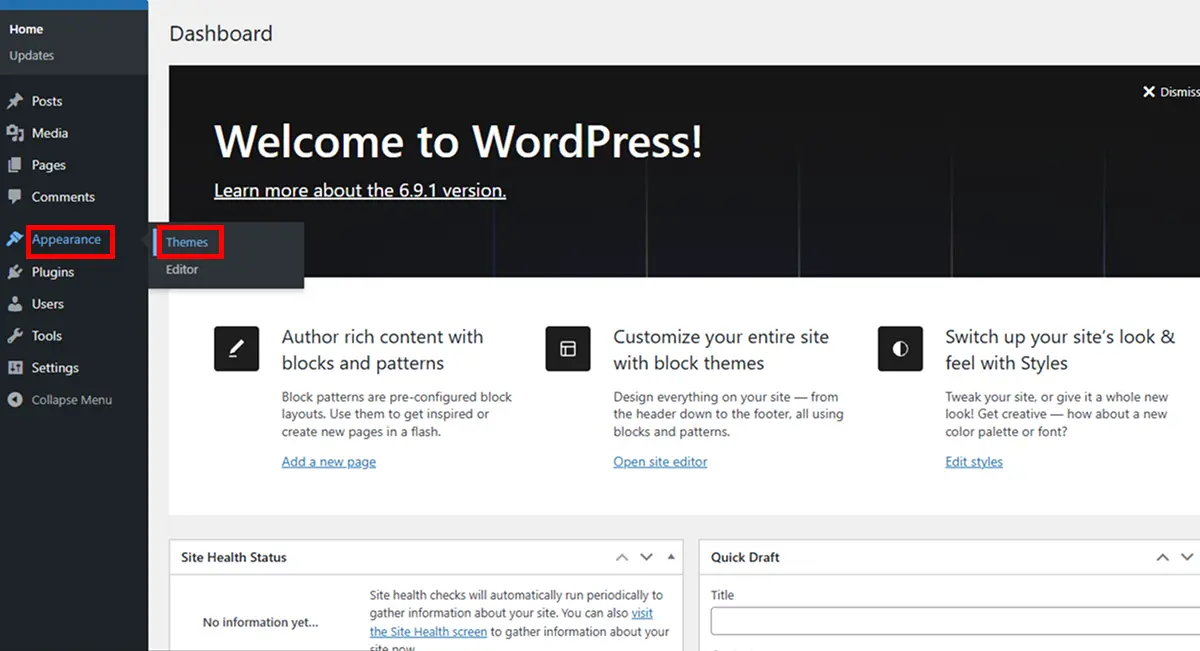
You will see the themes currently installed on your website. To add a new one, click Add New Theme.
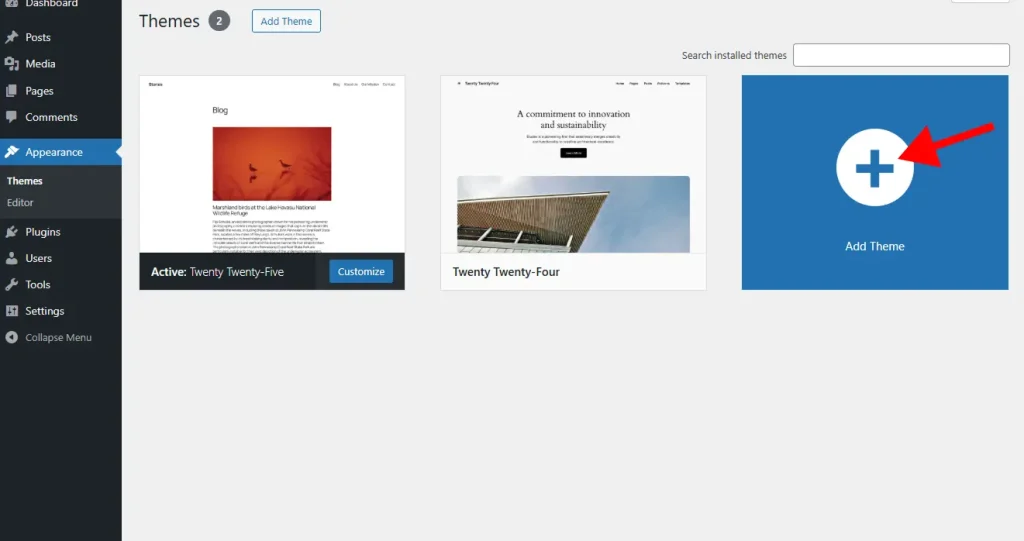
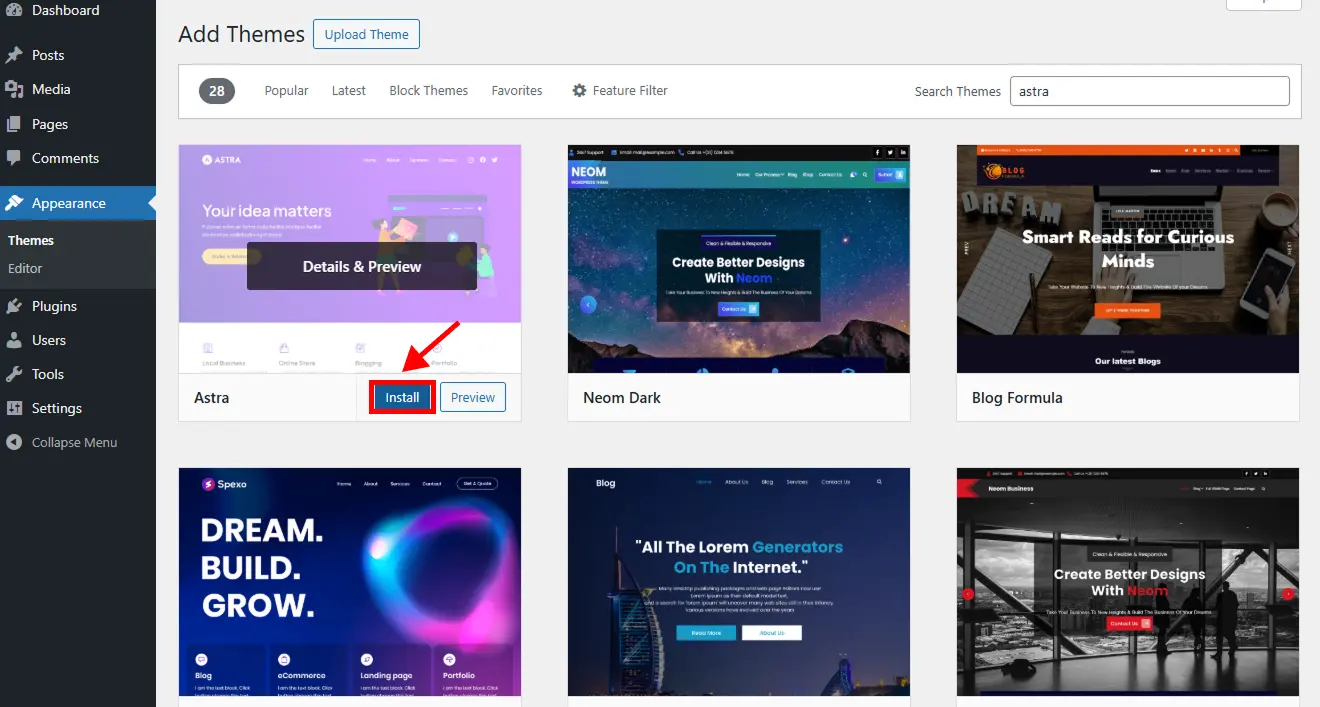
You can browse thousands of free themes here. In this guide, we use the Astra theme as an example, but you can choose any theme you like.
When you find a theme you want, move your cursor over it and click Install.
After installation, click Activate to apply the theme to your website.
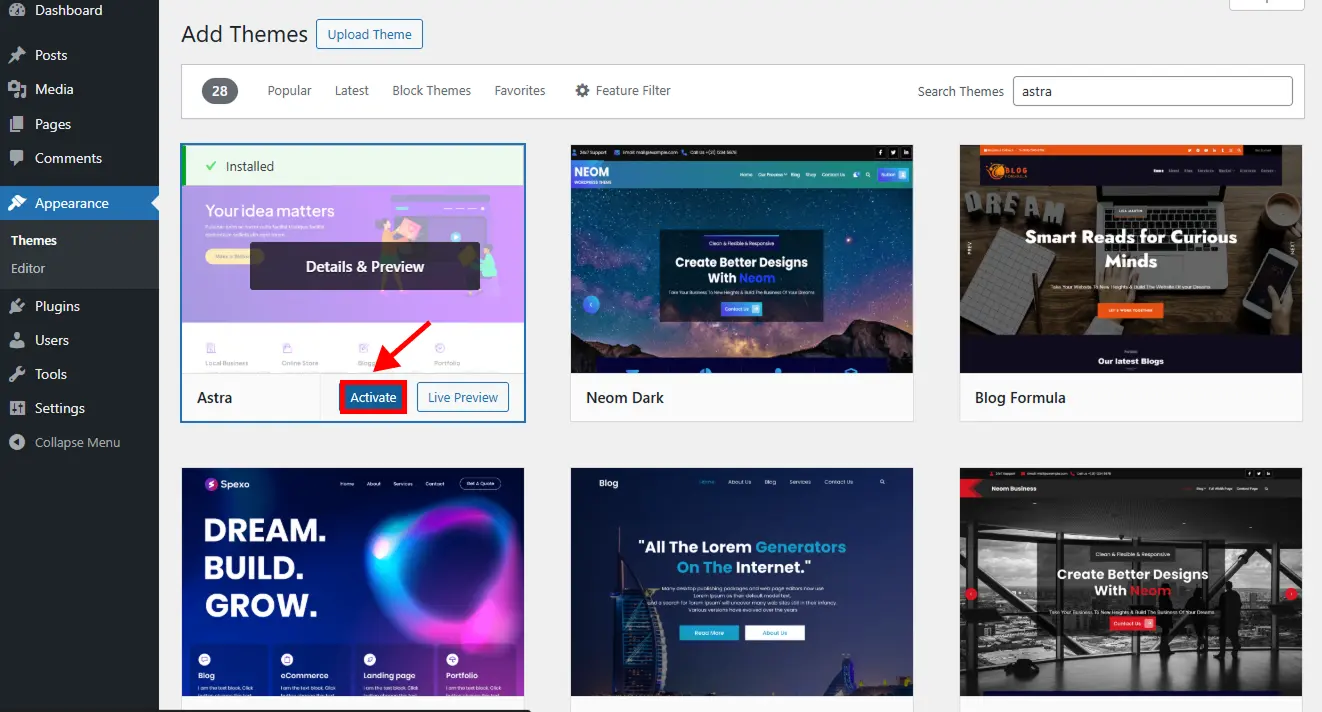
Your theme is now live.
To customize it, go to Appearance and click Customize.
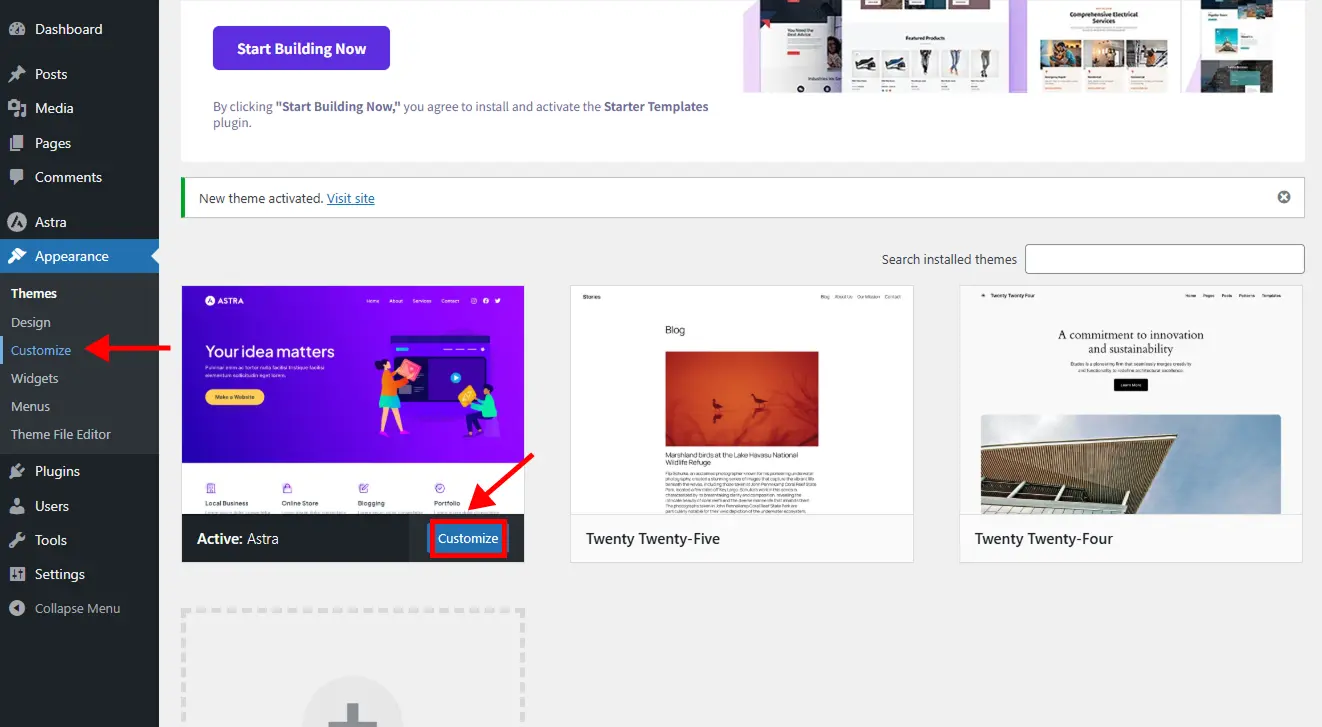
Here you can change colors, fonts, layout, menus, header, and footer.
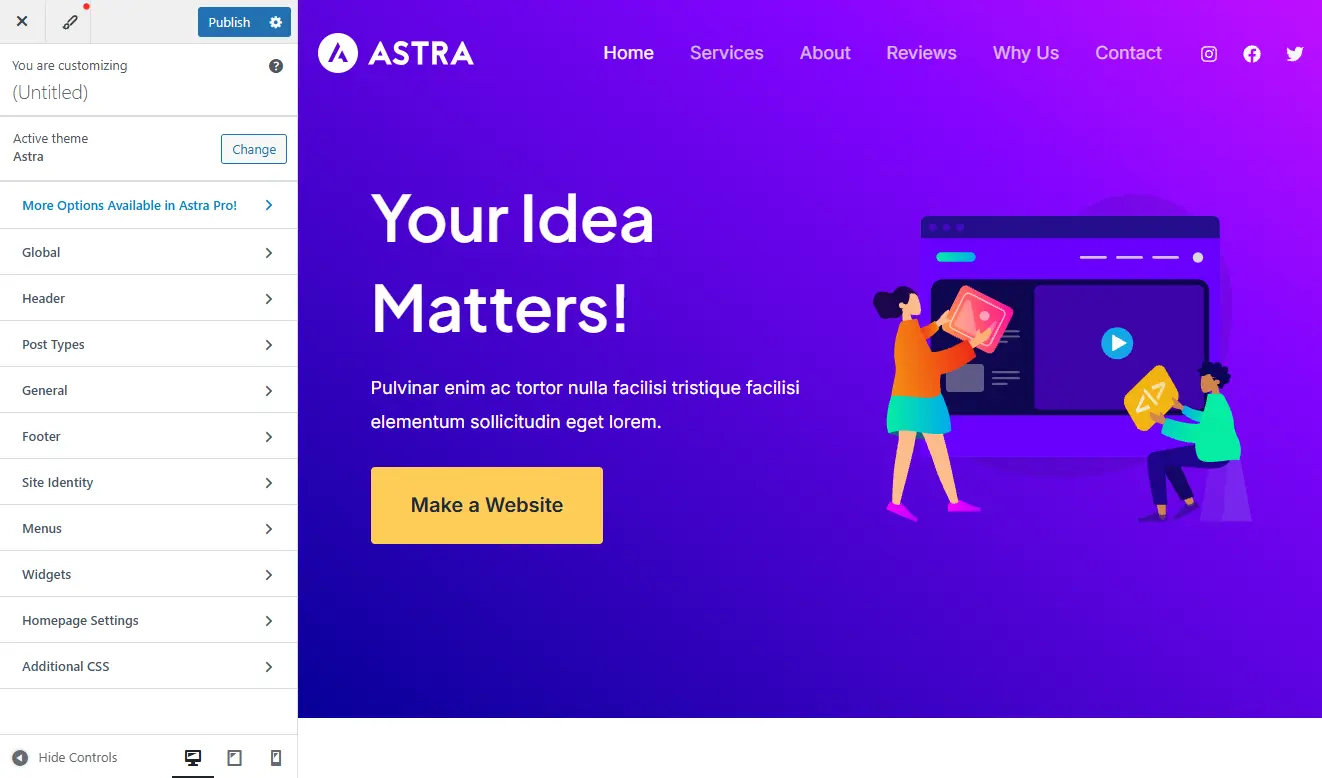
When you finish editing, click Publish to save your changes.
Do not worry if you cannot edit page content here. You can edit all pages and posts later using the WordPress editor.
Next, we will create and edit pages for your website.
4. Add Content to Your Posts and Pages
In WordPress, your content is divided into two types, posts and pages.
Posts are used for blog articles. You will add and update them regularly as your website grows.
Pages are for important information that does not change often. Common pages include Home, About Us, and Privacy Policy.
By default, WordPress shows blog posts on the front page. You can create a separate Home page and keep your blog on another page if you prefer. You can also remove the blog section if you do not need it.
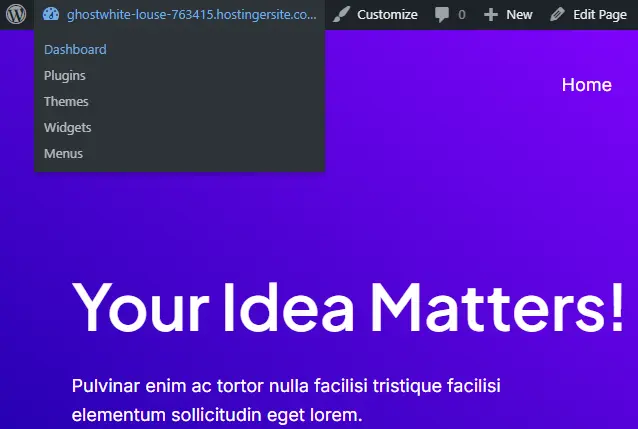
To add a Home page, go to your WordPress dashboard by hovering over your site name at the top and clicking Dashboard.
Next, go to Pages and click All Pages.
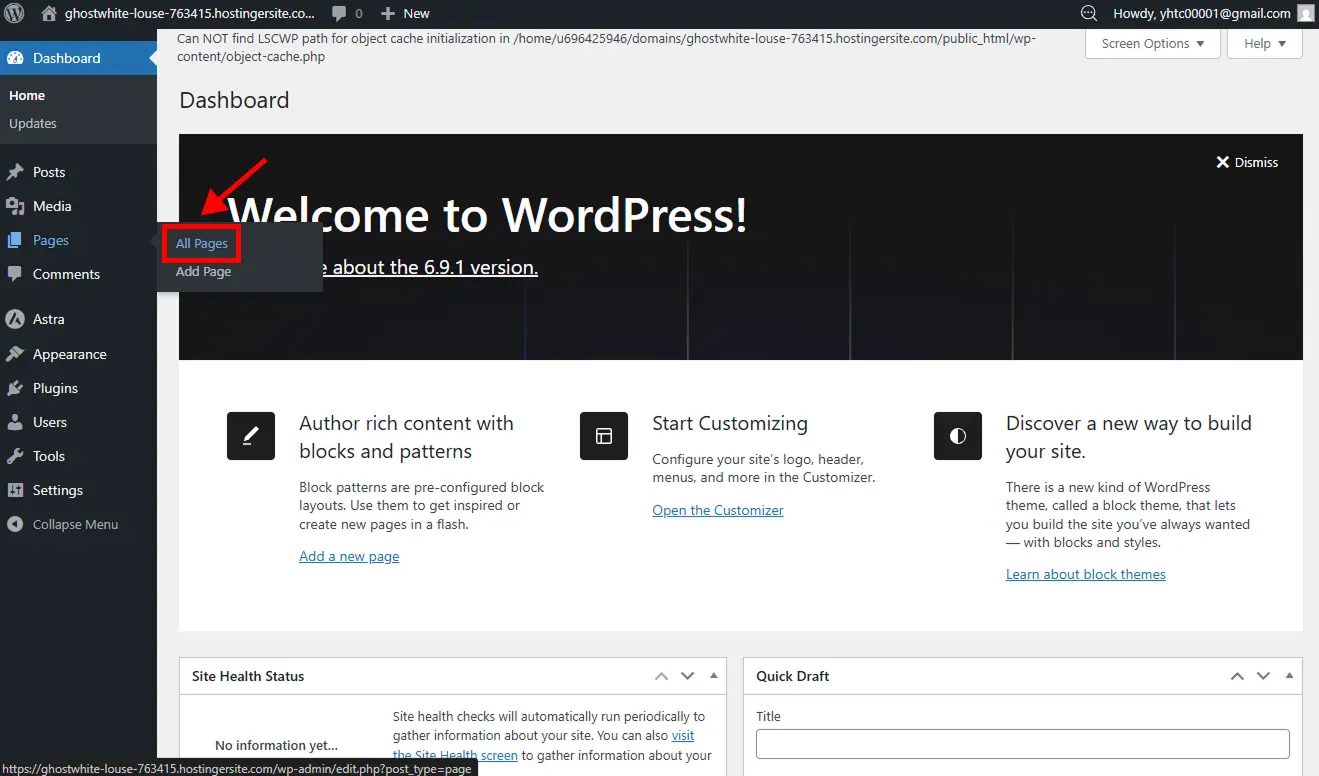
If you are using a theme like Astra, a Home page may already exist. Click the page labeled Front Page to edit it.
If there is no Home page, click Add New to create one.
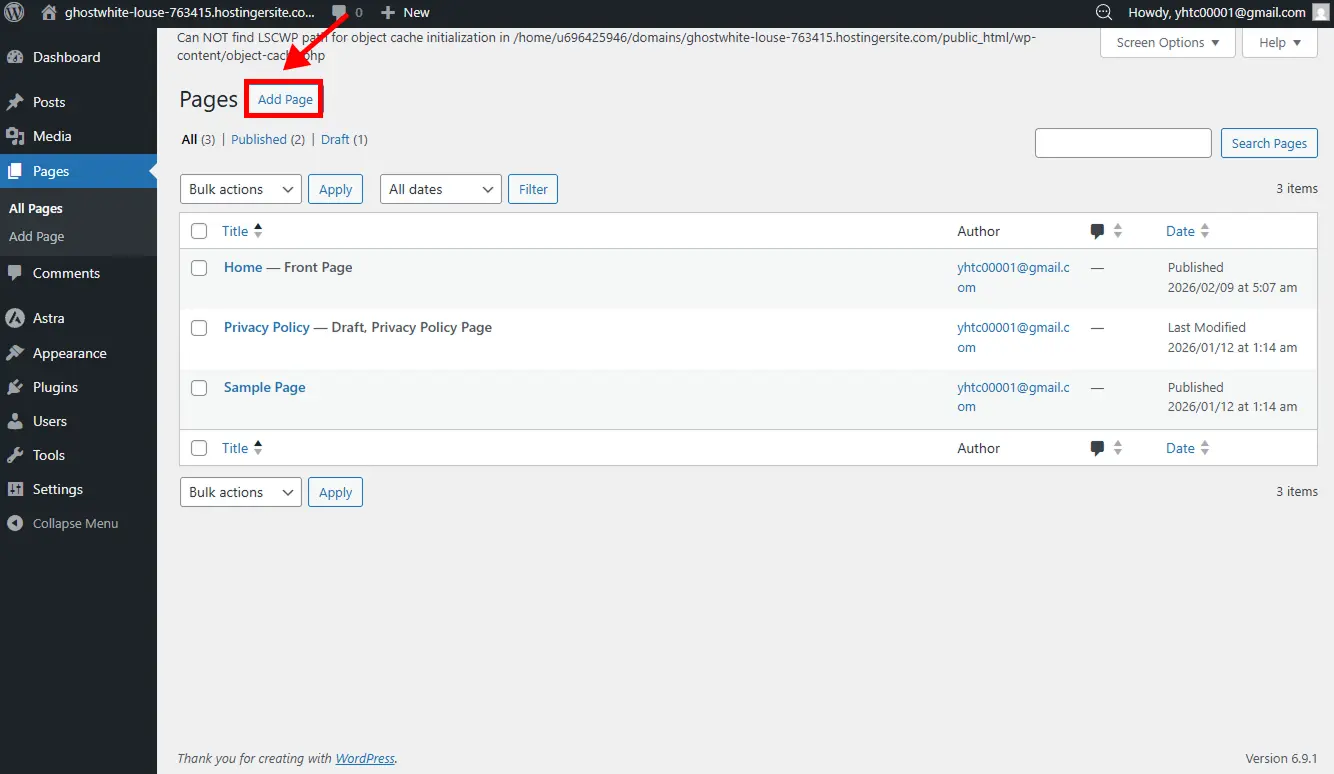
You will enter the WordPress editor. Here you can add text, images, videos, and other content using blocks.
When you finish editing, click Publish or Update to make the page live.
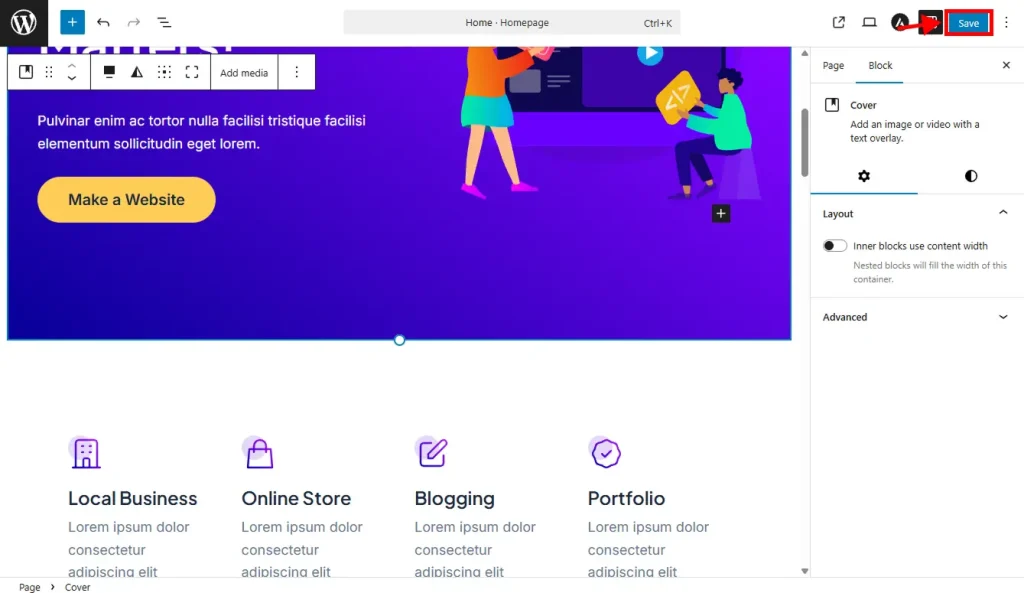
Repeat the same steps to create other pages such as About, Privacy Policy, Blog page, or landing pages.
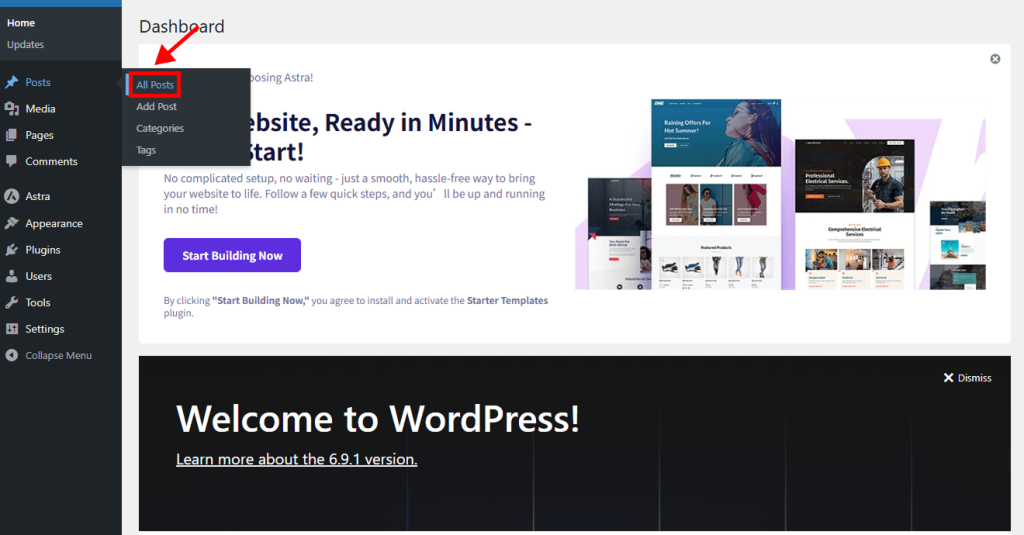
To create a blog post, go to your dashboard and click Posts, then click Add New.
You will see the WordPress editor again.
Start by adding a title, then add your content such as text and images.
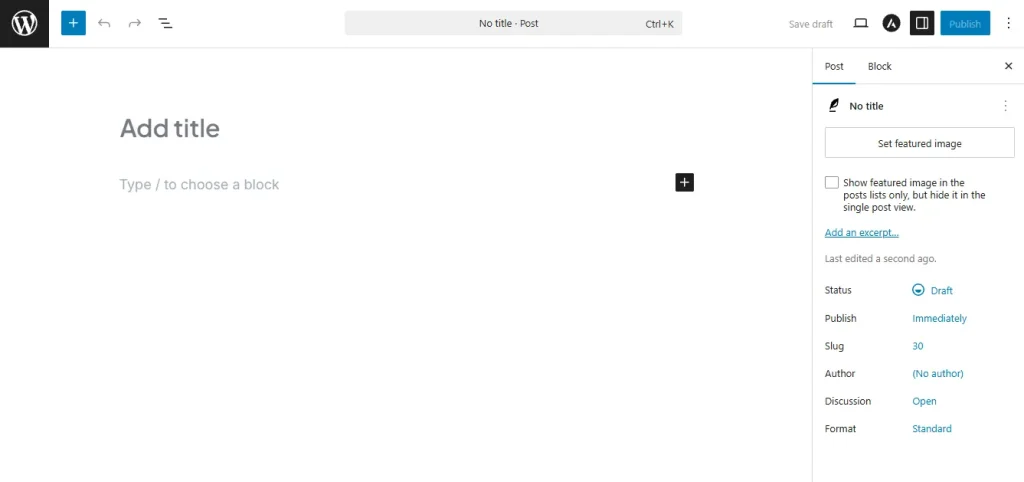
On the right sidebar, you can set a featured image, categories, and tags.
Remember to click Save Draft while working. You can also click Preview to see how your post looks.
When everything is ready, click Publish to make your post live.
5. Customize Site Settings
Now that your website is built, you can adjust a few settings to make it look and work the way you want.
Change Site Title
Your site title is your website name.
To change it, go to your WordPress dashboard and click Settings, then click General.
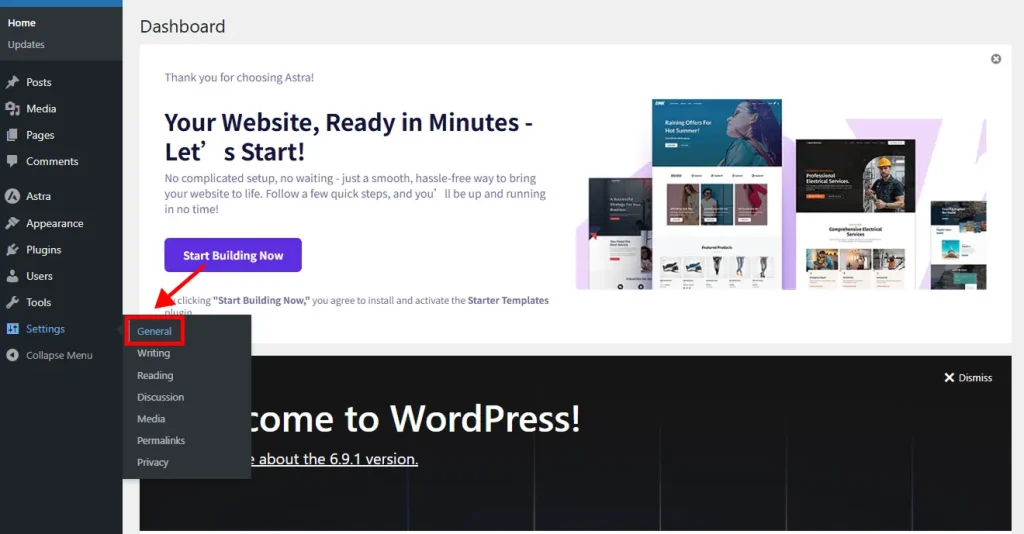
You will see two fields called Site Title and Tagline. Enter your website name and short description.
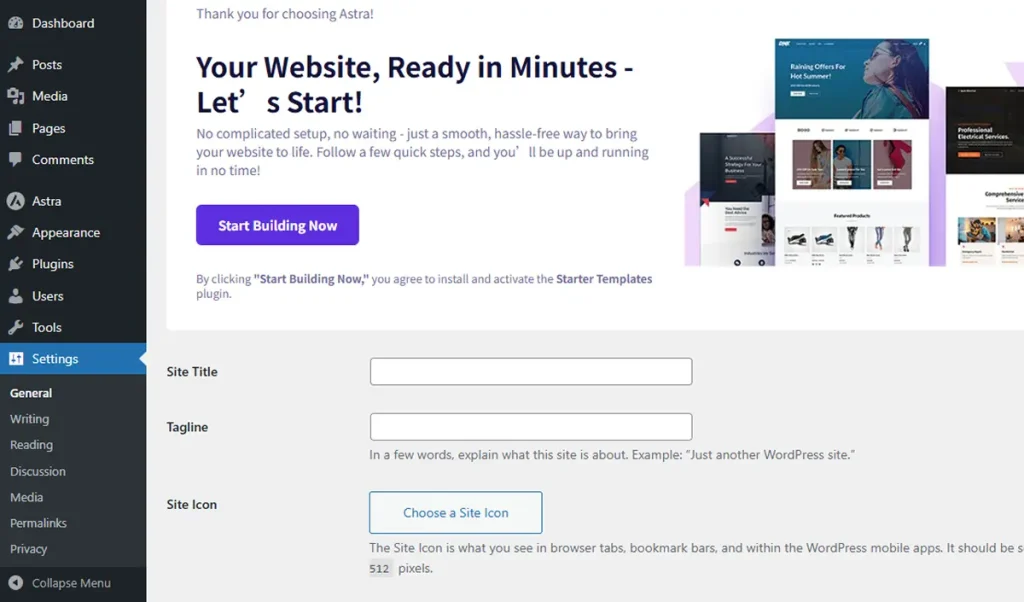
Scroll down and click Save Changes.
Set Your Homepage
Some WordPress themes show blog posts on the front page by default.
If you want to use a custom Home page, go to Settings and click Reading.
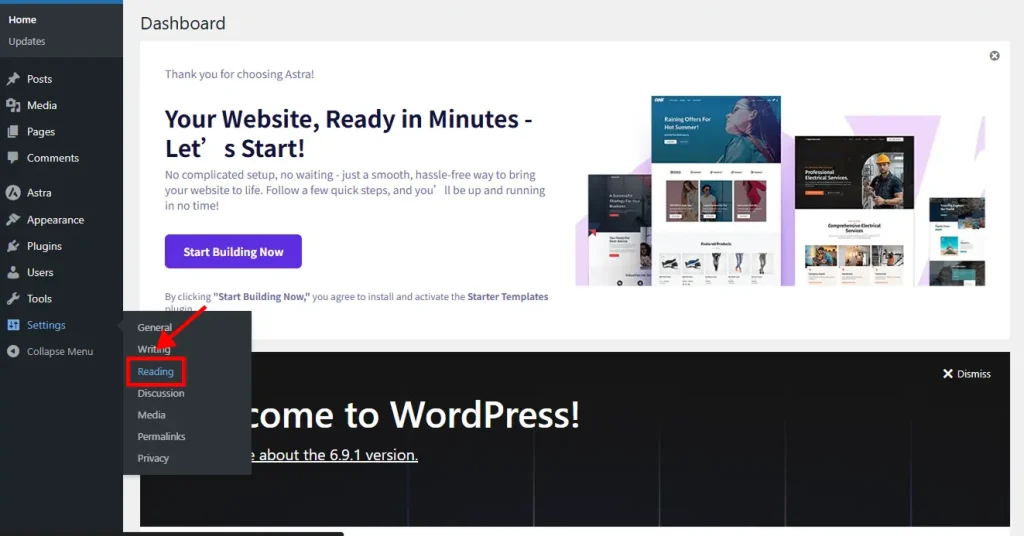
Here you can choose what your homepage displays.
Select A static page if you want a custom Home page.
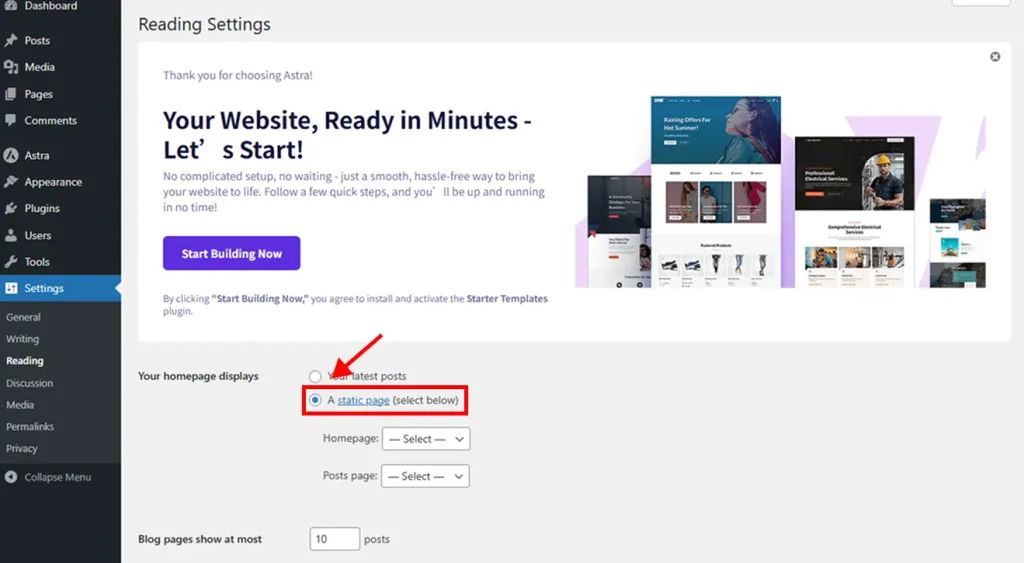
Then choose your Home page from the Homepage dropdown list.
You can also choose your Blog page from the Posts page dropdown.
Click Save Changes when finished.
Customize Navigation Menu
A navigation menu helps visitors move around your website.

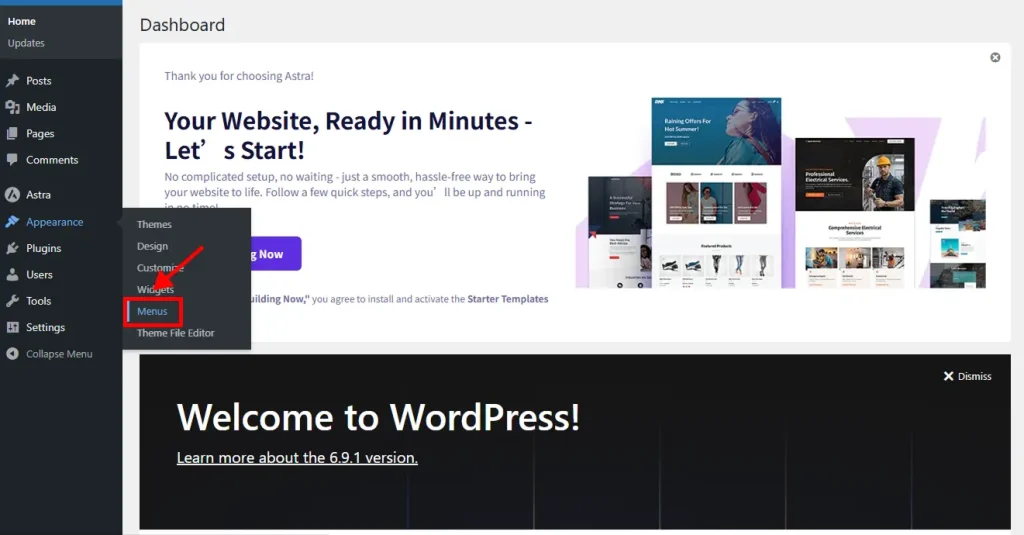
To edit your menu, go to Appearance and click Menus.
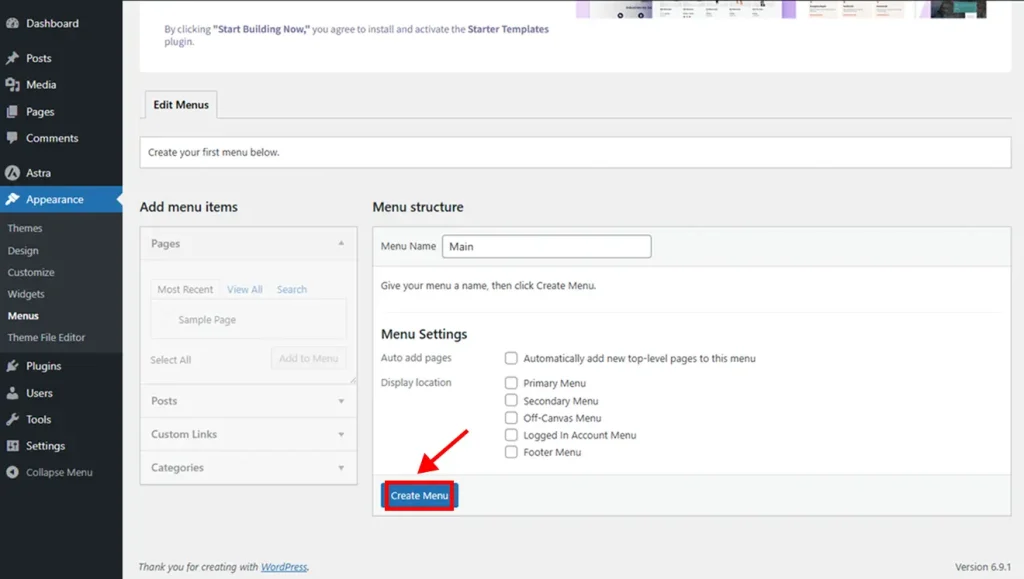
Enter a name for your menu and click Create Menu.
On the left side, you will see your pages. Select the pages you want and click Add to Menu.
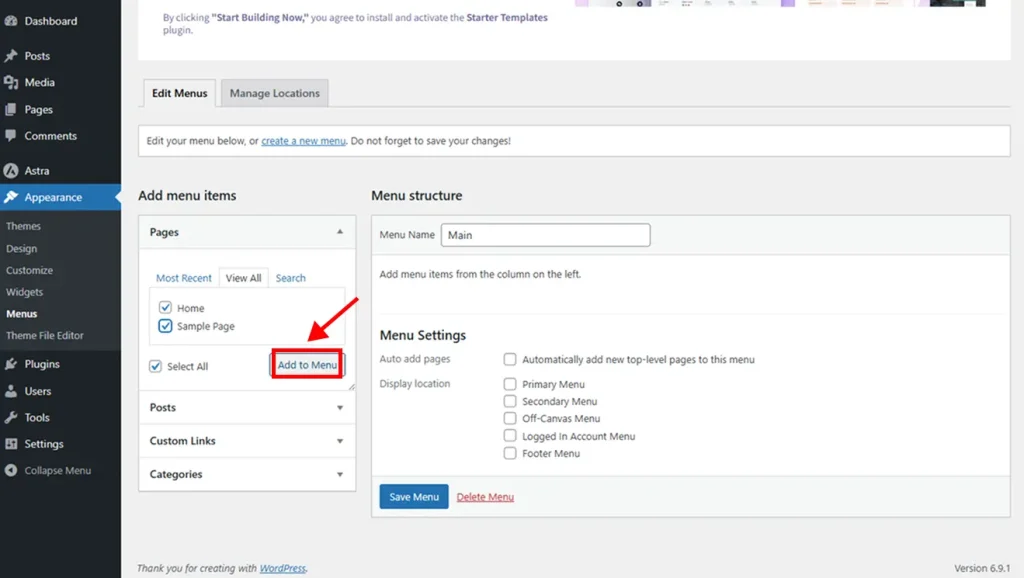
You can drag and rearrange the menu items on the right side.
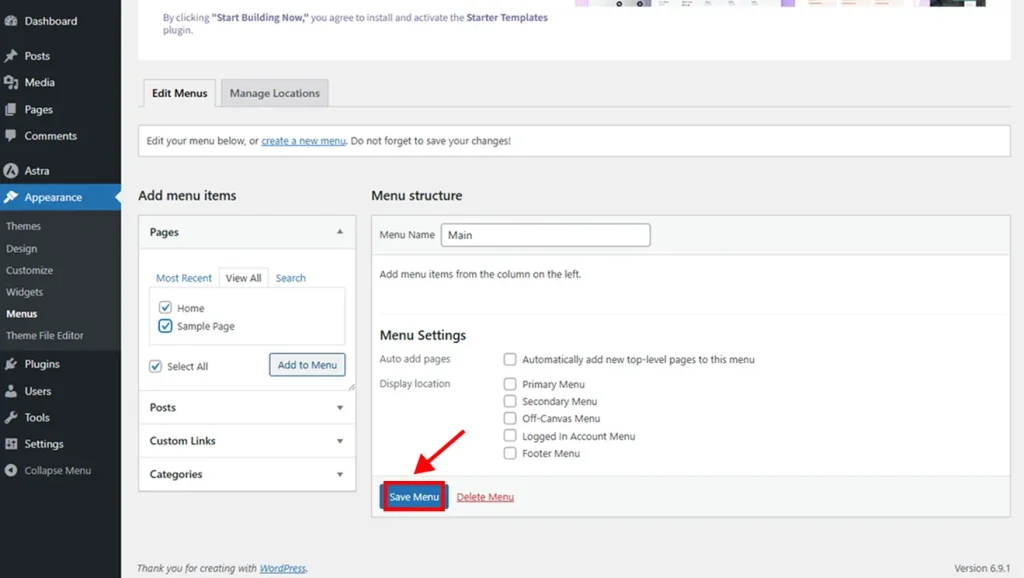
Next, choose where the menu should appear on your site. For example, you can select the Primary Menu location to show it at the top.
When done, click Save Menu.
6. Add Useful WordPress Plugins
WordPress plugins help you add more features to your website.
There are thousands of plugins available. You can use them to improve your site design, performance, security, and functionality.
For example, plugins can help you:
- Share posts on social media
- Speed up your website
- Create an online store
- Protect your site from hackers
- Add member only pages
- Build online courses
- Automate tasks
This flexibility is one reason why WordPress is a powerful content management system.
Recommended Plugins
Here are some useful plugins for beginners:
- WPForms Lite
- Create contact forms using an easy drag and drop builder.
- Easy WP SMTP
- Improve email delivery from your website.
- MonsterInsights
- View Google Analytics reports inside WordPress.
- SeedProd
- Build coming soon pages and custom layouts.
- Rank Math SEO
- Optimize your website for search engines.
- All-in-One WP Migration
- Create backups and restore your website easily.
You can also explore more must have tools in this article 10 Best WordPress Plugins 2025 for Every Website to find plugins that suit different website needs.
7. Publish Your WordPress Site
So far, you have been setting up your website privately, and it is not visible to the public yet.
To make your site live, log in to your WordPress dashboard.
At the top, you will see a notice saying your website is showing a coming soon page.
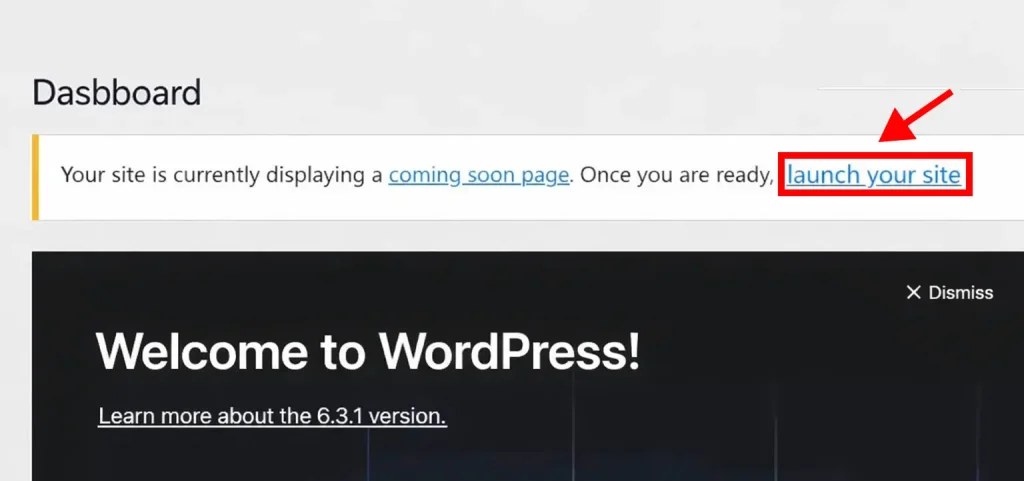
Click the Launch Your Site link in that notice.
Once you click it, your website will be published and anyone can visit it online.
It is that simple.
Frequently Asked Questions (FAQ)
How long does it take to set up WordPress?
Usually 10–30 minutes with 1-click install. Manual installs take longer.
Do I need coding to set up WordPress?
No. You can set up WordPress and publish pages without coding.
What’s the best WordPress setup for beginners?
1-click install + lightweight theme + only essential plugins.
Is WordPress free?
WordPress software is free, but you pay for domain and hosting.
Should I use WordPress.com or WordPress.org?
For full control and business growth, most people choose self-hosted WordPress (WordPress.org software).
What plugins do I really need?
SEO, security, backup, caching, and a form plugin are the common essentials.
What pages should I create first?
Home, About, Services, Contact, and Blog.
Visit our page if you need more details.
Also Read:
- What Is a Content Management System (CMS)? 2026
- WordPress Website Guide: Definition, Types, Design & Cost
- 10 Best CMS Platforms to Build With in 2026 (Compared)
- 10 Best E-Commerce CMS Platforms to Boost Your Sales (2026)
- 10 Best WordPress Plugins 2025 for Every Website
- WordPress SEO Plugins: The Best Tools to Improve Rankings in 2026
Stay Connected: Website | Facebook | Instagram | TikTok | Lemon8 | Xiaohongshu
Share This Article: